
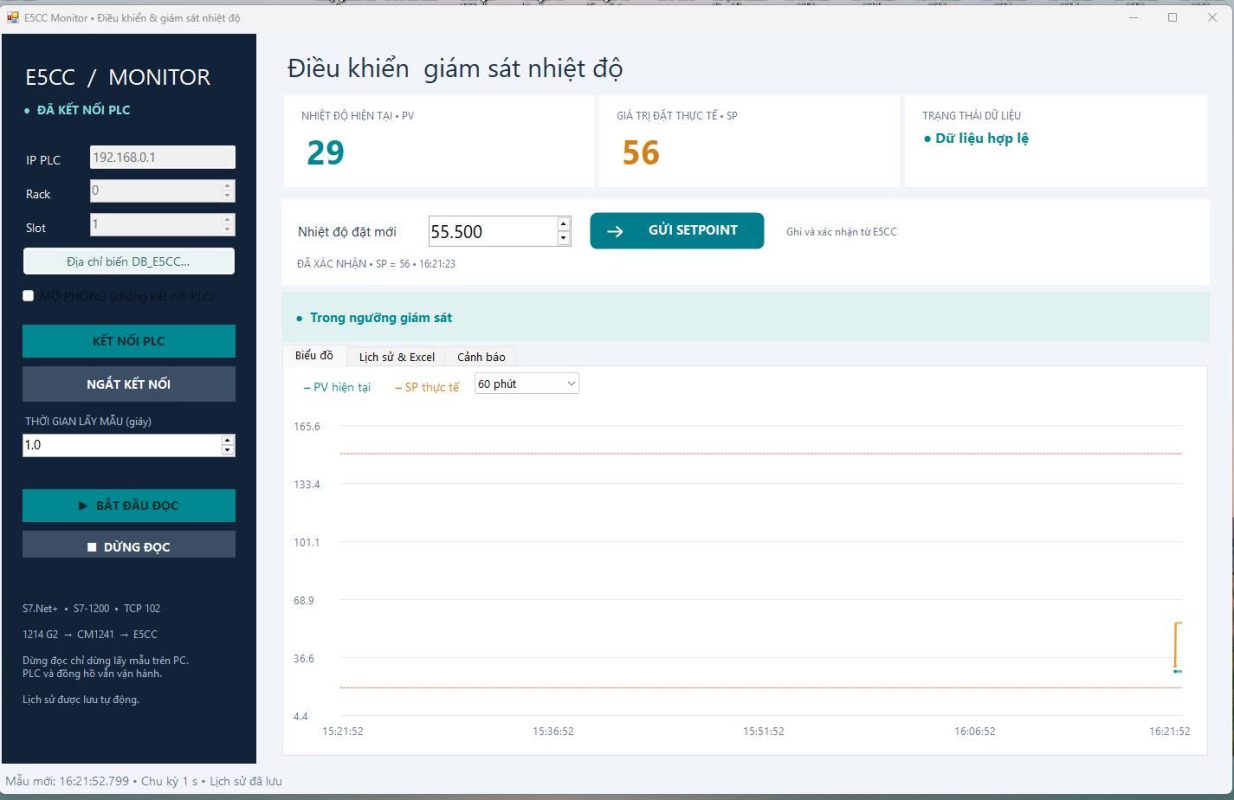
Working with an Omron E5CC temperature controller and a Siemens S7-1200 G2 PLC? E5CC Monitor brings temperature readings, setpoint adjustments, trends, and historical data together in one Windows application.
The project uses this communication path:
Windows PC → Ethernet → S7-1200 G2 PLC → RS485 Modbus RTU → Omron E5CC
The application communicates with the PLC through S7.Net, while the PLC handles Modbus communication with the E5CC.
The app includes several useful features:
- Live temperature monitoring: View the measured temperature (PV) and the setpoint read back from the controller (SP).
- Setpoint adjustment: Send a new temperature setpoint and check its confirmation through the PLC and controller readback.
- Temperature trends: Follow PV and SP on a chart to see how the process responds.
- Historical records: Save temperature samples and events locally for later review.
- Excel export: Export records for a selected period to
.xlsxwithout installing Microsoft Excel. - Temperature alerts: Configure upper and lower thresholds with an optional audible alert.
- Editable PLC addresses: Map individual application variables to the actual addresses in
DB_E5CC. - Simulation mode: Explore the interface and workflow before connecting to hardware.
You can also adjust the sampling interval or pause data collection. Pausing the app’s readings does not stop temperature control on the E5CC.
Before connecting, configure the communication address on the E5CC. Use a model equipped with RS485 communication, then open its Communications Setting Level and set the following example values:
| Parameter | Display | Example setting |
|---|---|---|
| Communication protocol | psel |
mod — Modbus |
| Communication unit number | u-no |
1 |
| Baud rate | bps |
9.6 — 9600 bps |
| Parity | prty |
even |
The unit number identifies the controller on the RS485 network. Each controller on the same bus needs a unique address, while its baud rate and communication format must match the master. Restart the controller after changing communication settings so they take effect. See the Omron E5_C Communications Manual.
For this project, use 8 data bits, even parity, and 1 stop bit (8E1). To allow remote setpoint changes, enable Communications Writing by setting cmwt = on in the Adjustment Level.
Next, match the PLC configuration to the controller:
| PLC parameter | Example value |
|---|---|
SlaveAddress |
1, matching the E5CC’s u-no |
BaudRate |
9600, matching the E5CC’s bps |
Port |
Hardware identifier of the actual RS485 communication port |
A useful troubleshooting tip: the E5CC unit number, PLC IP address, and PLC data block addresses serve different purposes. The unit number selects the E5CC on RS485. The IP address connects the PC to the PLC. The data block addresses tell the app where to read or write PLC variables.
In E5CC Monitor, enter the PLC IP address and configure the variable addresses to match your compiled TIA Portal project. For example, the supplied layout uses DB100.DBD14 for temperature and DB100.DBD18 for the actual setpoint when DB_E5CC is assigned DB number 100. Always verify the actual DB number and offsets in TIA Portal.
Once connected, start reading and compare the app’s PV and SP with the E5CC display. Then send an appropriate test setpoint and confirm that the controller and app show the same value.
If communication fails, check the slave address, baud rate, parity, RS485 polarity, and PLC port configuration. If reading works but writing fails, check cmwt and the controller’s setpoint limits.
The current package has passed software and simulation checks; verification on the actual PLC, RS485 module, and E5CC is still required before production use.
Need a custom solution for your automation project? Gia Hung Tech Automation Co., Ltd. (Công ty TNHH Tự động hóa Gia Hưng Tech) provides system design, monitoring and reporting software development, and PLC programming tailored to your requirements.
Contact us to discuss your project through our website: giahungtech.vn.